

Set the Data Version
Change the data version that is used in your project.
A data version is an instance of uploaded data. Data versions are generated by a job, which is a set of instructions to create the data version. When working in a project, you may want to change the data version when you want to:
- Preview a new data version that was generated on an ad hoc basis before releasing it to production.
- Release a specific data version to production.
Note: If the data version release behavior is set to Auto-release latest, you don't have to change the data version of your project in order to preview the new data version. The latest data version that is generated by a job in your project will automatically be applied. For more information, see Release Behavior.
-
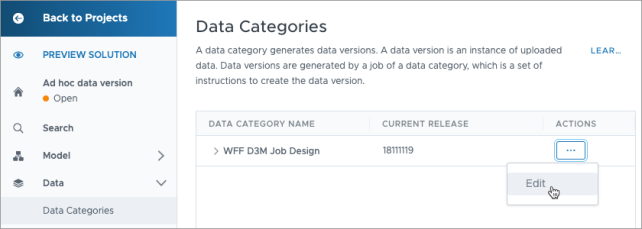
In a project, on the navigation bar, click Data > Data Categories.
-
In the Data Categories room, click the Actions button on the right side of the data category that is used to generate data versions for your solution, and then click Edit.
-
In the Release tab change the data version by doing one of the following:
Release behavior Do this If your release behavior is set to manual release - Click the Data version list to see a list of available data versions.
- Select the data version you want to preview or release.
If your release behavior is set to custom release You must contact Visier to update the data version in the Custom data version box.
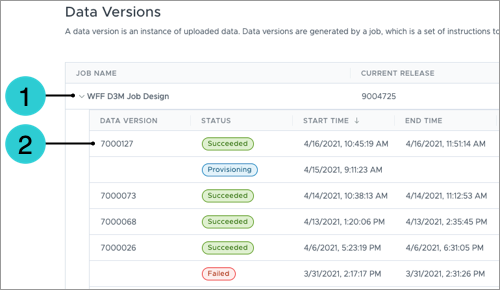
Tip: Before you edit the data version, you can find the unique identifier of the data version that was just generated by expanding the job name. In this example, 7000127 is the unique identifier of the latest data version that was generated successfully.
- When finished, click Update.
Result: You can preview the selected data version by clicking Preview Solution on the navigation bar. Once you've validated the data version, you can release the data version to production by publishing your project.
Set the base project for your releases
Designating a base project ensures your project uses only data versions created by the specified project or those derived from its lineage. This will prevent your project from using an unexpected data version in production, and clarify changes in releases created from the same base project.
- If no base project is configured, the system automatically uses the most recent data version regardless of origin.
- If a new data version is created within a project, selecting that same project as the base project establishes its own data lineage. This ensures the new data version becomes active and prevents the system from automatically utilizing more recent data versions from other projects.
To set your base project:
- In a project, on the navigation bar, click Data > Data Categories > Edit.
- In Release > Release Behavior > Auto-release latest.
- Expand Base project and select the base project.